Feature Guide · Staffing
Where the punch happens,
and the radius you choose
A clock-in radius is a distance you set around a work location. Step outside it and the phone blocks the punch before it ever reaches payroll. Here's exactly what enforces that, what doesn't, and what the record shows afterward.
What it is
A configurable distance the phone checks before it lets someone punch in.
Every company using Valletto sets a clock-in radius for each location: how close a valet has to physically be before the app will let them start a shift. It isn't a fixed rule baked into the product - it's a setting a manager picks, and it's enforced on the device, not somewhere in the cloud. That distinction matters more than it sounds like it should, and this guide is about being precise on it.
If you run more than one site, or you've had a valet clock in from home once too often, this is the setting that stops it from happening again on a stock install of the app - and the guide that tells you honestly where its authority ends.
Who uses it
Owners setting the policy, managers configuring a new site
Two people touch this setting
One decides how strict the radius should be. The other applies it when a new location comes online.
Owner
Worried about off-site punching
Wants proof that a valet can't clock in from their couch. The radius is the direct answer - it's a real, enforced distance, not a policy on paper.
Manager
Configuring a new site
Picks a radius that fits the property - tight for a compact hotel entrance, looser for a sprawling event lot where GPS drifts more.
Valet
Sees only the result
Never sets the number. They either clock in cleanly or the app tells them exactly how far away they are and what to do about it.
→The radius is a company-level policy, set once per location and applied to everyone who clocks in there - except the roles carved out below.
The setup order
Setting the radius, before anyone clocks in
Company Settings → Payroll → Clock-in
Four fixed distances - not a slider, not a free-form number. Pick the one that matches the property.
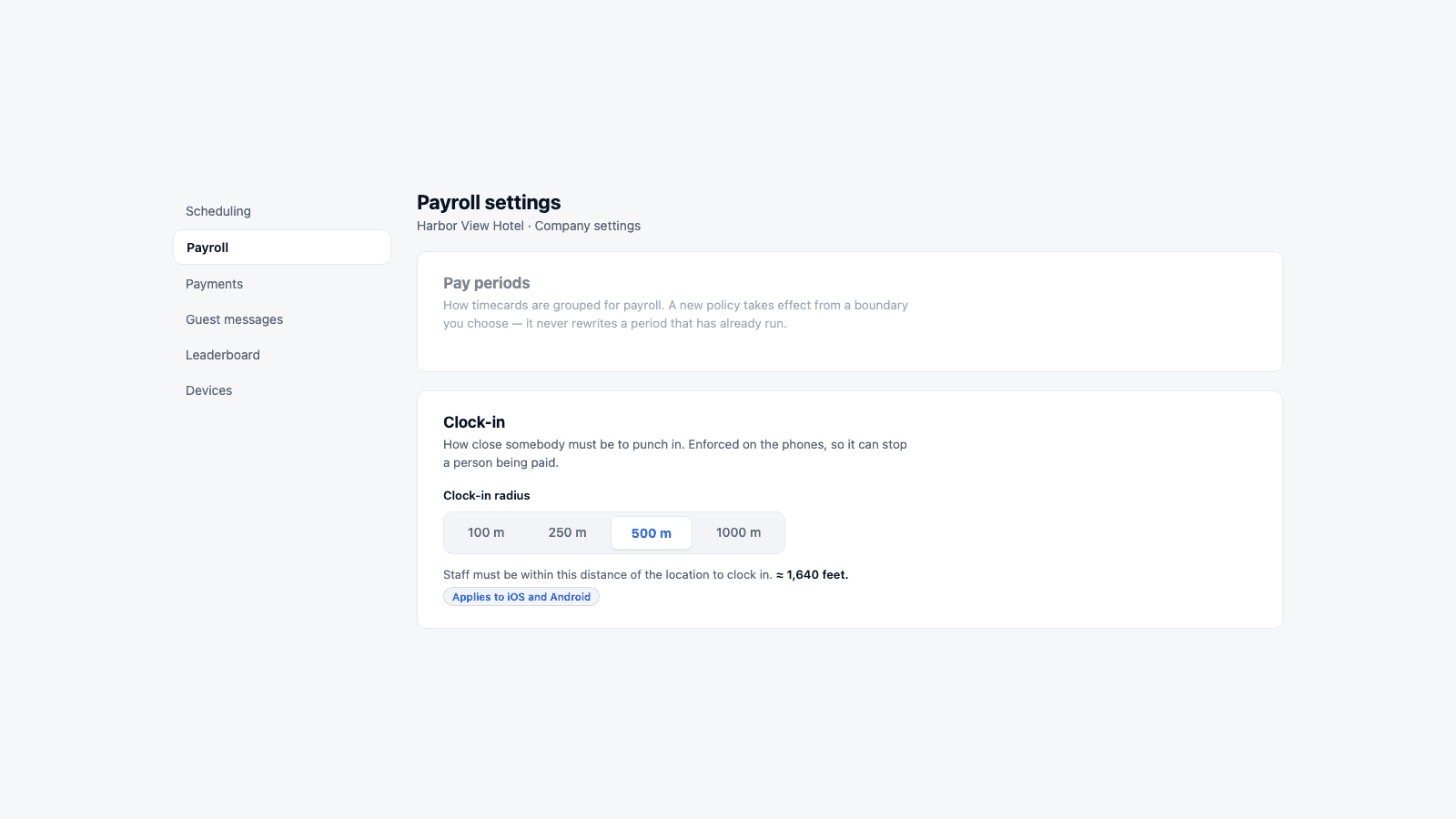
→The console's Payroll tab, Clock-in card - the same place pay periods and overtime rules live, because this is a payroll control first.
The radius lives in the console, under Company Settings → Payroll → Clock-in, right alongside pay periods and rounding rules - not buried in a device or location settings screen. That placement is deliberate: the card's own description calls it what it is, "enforced on the phones, so it can stop a person being paid."
There are exactly four options: 100, 250, 500, or 1000 meters. A manager doesn't type in an arbitrary number - they pick one of the four, and the setting shows the rough equivalent in feet next to it (500 meters reads as roughly 1,640 feet) so the distance is legible without doing math in your head. Under the hood the value is stored as gracePeriod.clockInProximityMeters on the company's payroll policy document, and every valet clocking in at that location reads the same number.
The daily loop
A valet clocking in - in range, and out of range
What the phone does at the moment of the punch
The radius check runs on the device, before the punch request ever leaves the phone.
Inside the radius
Normal punch- App reads the phone's current location
- Distance to the location is within the configured radius
- Clock In proceeds - shift starts, timecard opens
Outside the radius
Blocked- Distance exceeds the configured radius
- The punch is refused before it's sent
- A blocked-state message tells them how far away they are
→Both outcomes are decided on the phone, using the phone's own location fix against the radius the company set.
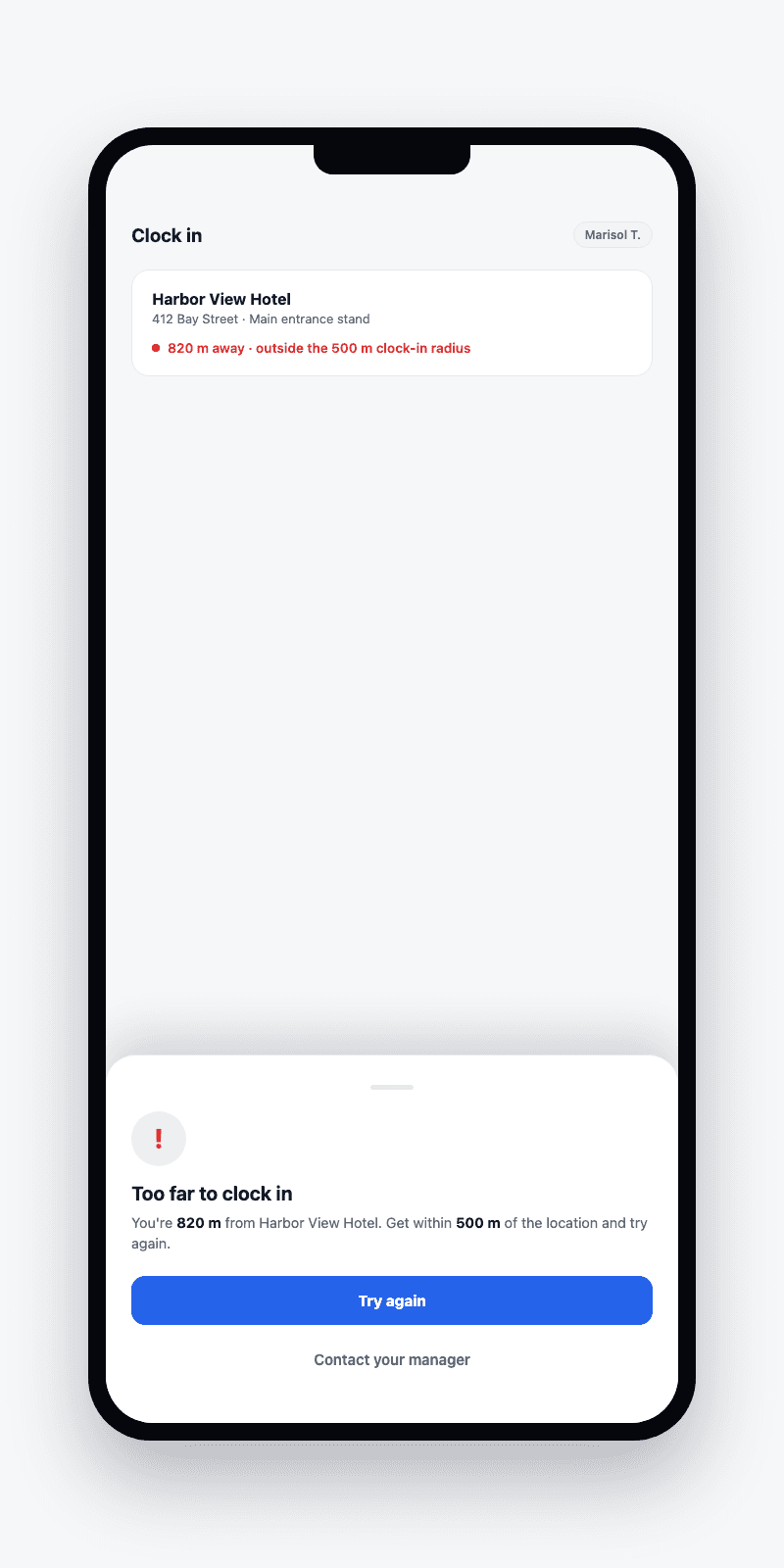
→The blocked state on the phone - it names the actual distance and the radius it needs to clear, not just a generic error.
On iOS, the app first checks that it has location permission at all - no permission is treated as blocked, the same as being too far away, so a valet can't dodge the check by declining access. With permission granted, it compares the phone's last known position to the location's coordinates. Inside the radius, the punch goes through. Outside it, the app raises a blocked sheet that states the actual distance and the radius, rather than a generic refusal. Android runs the same shape of check in its clock-in view model, comparing live location against the same radius value it reads from the company's settings, and surfaces a plain too-far-to-clock-in error when the distance doesn't clear it.
The edge cases
Spotty GPS, who bypasses it, and what the record shows
Three things worth knowing before you turn it on
A radius is a real gate, but it has real edges - a device without a location fix yet, a role that skips the check, and a record that tells you which happened.
Spotty GPS
No fix yet is not the same as too far
If the phone hasn't delivered a location fix - just got permission, weak signal - the app holds the punch as unavailable rather than blocking it as too far. It re-enables the button the moment a fix arrives.
Owner bypass
Owners and admins skip the distance check
They still need location services on and the app authorized, since Tap to Pay depends on it - but the radius check itself doesn't apply to them. They may legitimately need to clock in remotely.
The record
The timecard shows a normal punch, nothing more
A successful clock-in looks like any other timecard entry. The radius decides whether the punch happens at all - it doesn't attach location data to the timecard afterward.
→The radius is a gate at the moment of the punch, not a location log that persists past it.
What it deliberately does not do
Client-enforced, not server-enforced - and not a geofence
The honest limits of the setting
Two things worth stating plainly, because both are easy to oversell.
Not server-enforced
The clock-in server call doesn't check location
The radius is checked entirely on the phone before the punch request is sent. The server that records the punch doesn't read a latitude, longitude, or distance - it trusts that a stock install of the app already applied the gate. It's a real, configurable, client-side control, not a server-side one.
Not a geofence
This is staff clock-in, not vehicle or guest tracking
The clock-in radius only governs whether a valet's phone can start a shift near a location. Valletto has no arrival geofence for guests or vehicles anywhere in the product, and no live map of car positions - this setting has nothing to do with either.
→Say what it is precisely: a real, customer-configurable, client-enforced distance check on the punch - not a server-side control, and not related to guest or vehicle detection at all.
If your threat model includes a valet running a modified or rooted build of the app, the radius alone won't stop that - it's a control against ordinary use on a stock phone, the same way a locked door is a control against someone walking in, not against someone with a key cut. For the overwhelming majority of teams, that's exactly the right level of enforcement: it stops the common case - clocking in from home, from the wrong site, from the car in the lot down the street - without adding server round-trips or location logging to every punch.
What it connects to
Time Cards and Roles are the two features it leans on
Where to go next
The radius decides whether a punch happens. Two other systems decide what happens around it.
Time Cards
What a clean punch turns into
Once a punch clears the radius, it becomes a timecard entry - grouped into pay periods, subject to rounding and overtime rules. See the Time Cards guide for how that record is built and paid out.
Team & Roles
Who the bypass actually covers
The owner/admin bypass on the radius check is one instance of the broader role model. See the Team guide for how roles are assigned and what else they unlock beyond clock-in.
→Set the radius once per location, then let Time Cards and Roles handle everything downstream of the punch.
Where Valletto changes the math
Pick the radius that matches the property, not the tightest number available.
A dense hotel entrance can run tight at 100 or 250 meters. A large event lot or a property with patchy GPS coverage does better at 500 or 1000 - a radius so tight it blocks honest punches trains staff to work around it, which defeats the point.
Next step: open Company Settings → Payroll → Clock-in for each of your locations and confirm the radius actually matches the site - then read the Time Cards guide for what happens to a punch once it clears the gate.
