Feature Guide · Shift Reports
A night that
closes itself
The end of a shift is a reconciliation. Somebody needs to know how many cars, how much money, whose tips, and whether anything needs a second look - before they leave the stand. A shift report that assembles itself from what already happened beats one somebody types from memory.
What it is
Every number on the report was already recorded somewhere else.
A shift report is a computed summary, not a form. It doesn't ask a valet or a manager to remember how many cars came through or count cash by hand. It reads the same check-ins, checkouts, payments, tags, and clock punches the rest of the app already wrote during the shift, and rolls them up into one screen: cars, revenue, tender, tips, and anything that needs attention. Nobody fills anything in to produce it - it exists the moment the window it covers starts, and it keeps updating while that window is still open.
This is a mobile-only feature. It lives on iOS and Android, opened from the stand a valet or manager is working. There is no shift report screen on the web console today - the closest thing there is the financial dashboard, which looks at money across a whole location and date range rather than one shift at one stand.
Where the numbers come from
Five inputs, one computed report
Everything is derived, nothing is entered
The report opens a window (a scheduled shift, or a custom range a manager sets) and classifies every session that overlaps it, then folds in punches and payment records.
Sessions
Check-ins & checkouts
Every ticket whose stay overlaps the shift window - counted as carried in, checked in, checked out, or still on the lot at the end.
Payments
Paid, comped, voided
Each payment event in the window: card or cash, in-person or online, tips, fees, tax, and the rate bucket the ticket priced against.
Punches
Who was clocked in
Time-card intervals overlapping the window, used both to count active valets and to split tips among whoever was on the clock when each one landed.
Tags
Rates & modifiers
Applied pricing tags resolve each ticket to a rate bucket (Standard, Overnight, VIP) and surface discounts, surcharges, and fees as their own rows.
→Nothing here is typed by a person. It's the same data the check-in flow, the payment sheet, and the time clock already wrote - read back and totaled.
A ticket is attributed to the shift that collected the money
A car doesn't have to start and end inside one shift's window to appear in that shift's report - it's the money and the physical presence that get attributed, on a cash basis.
→A guest who prepays online during the evening shift and drives off after midnight settles cleanly - the payment is attributed to evening, the pickup to graveyard, and neither shift reports a car that's actually fine.
Reading the screen
What's actually on it
The sections, in the order a manager sees them
Header first, then a Review banner only if something needs eyes, then the numbers a manager checks in the first five seconds, then the full money story.
Header
Which shift, live or ended
Location, stand, and a pill showing the shift name and time window - tap it to switch to a different shift occurrence or a custom range.
Review (conditional)
Voided tickets & unpaid cars
Only appears when there's something to look at: voided tickets (with who voided them and why) and cars that left without ever settling.
KPI strip
Cars served · Collected · Avg per car
The three numbers a manager checks before anything else - how busy, how much, how good the average ticket was.
Cars
On lot at start → checked out → on lot now
A flow that reads as inheritance: cars already there, plus arrivals, minus departures, equals what's left - proving its own arithmetic.
Money
Parking revenue → total collected → tender
Rate buckets (Standard, Overnight, VIP) nest under parking revenue, then fees, tax, and tips build to the total, then a cash/card split with in-person vs. online.
Covered (conditional)
Validations & comps
Partner-validated parking and house comps, shown as neutral information - not flagged as a problem, since this is the system working as designed.
Tips
Total, then per valet
The tip total, the percent of paid cars that tipped, and a row per valet with their share and the hours they were clocked in for.
→Every section is either always there or explicitly conditional - Review and Covered simply don't render when there's nothing in them, so a clean shift reads as a short screen.
A live example
An evening shift, midway through. This is the real layout - a phone-frame mockup built from the actual report sections, with placeholder numbers.
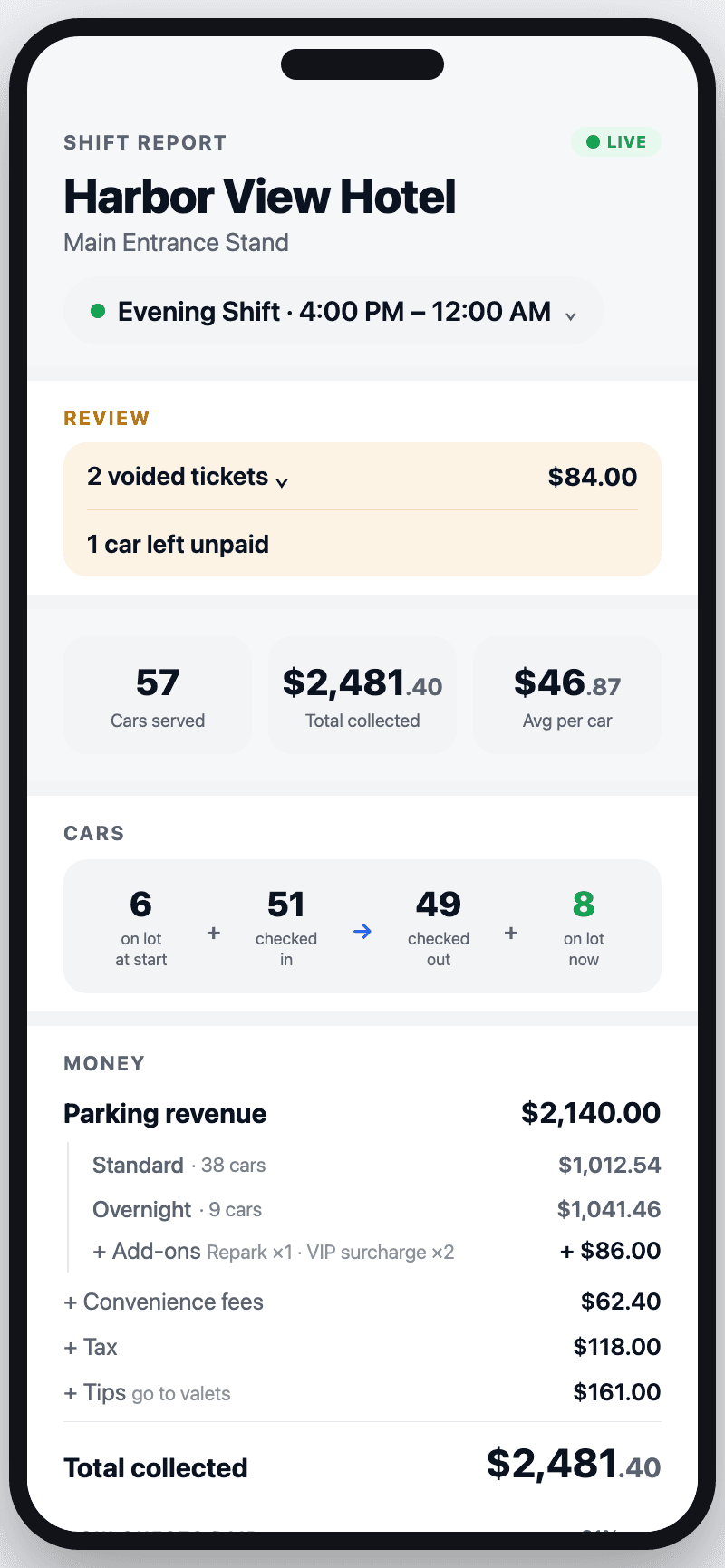
→Names, plates, and dollar figures here are illustrative - the sections and their order are the real mobile layout.
Who sees it, and when
Live while the shift runs, memoized once it ends
Open, live, closed
A shift report isn't a document generated at clock-out - it's a live view that exists for the whole window, then settles into a fixed record.
Before the shift ends
Live- Numbers update as cars check in, pay, and leave
- Marked LIVE in the header, with a green dot
- Anyone with access to the stand can open it mid-shift
After the shift ends
Settled- Marked ENDED - the window is fixed and won't move
- Cached once computed, so re-opening it is instant
- Still readable any time later from the shift picker
→Who opens it: a valet or manager working the stand, or a manager reviewing a prior shift from the picker. There is no separate distribution to a property contact today - the report is a screen someone opens, not an email that goes out on its own.
Edge cases
A shift that runs long, and a correction after the fact
What happens when the night doesn't end on schedule
Real shifts overrun, tickets get held for days, and mistakes get caught after the fact. The report is built to keep telling the truth through all three.
Runs long
Shift stays LIVE past its scheduled end
The window is what a manager selects, not a hard clock cutoff - a shift that's still handling cars past its nominal end time keeps updating live.
Long-stay ticket
A car parked for days
A ticket still open after 14 days stops counting toward every later shift's report - it's treated as abandoned bookkeeping rather than inflating "cars served" forever. Tickets that do check out keep their money on the shift that collected it.
Voided after checkout
A correction is attributed to when it happened
A void is attributed to the shift it was voided in, not the shift the car checked in on - so correcting a mistake doesn't rewrite a report that already closed.
→A voided ticket carries no revenue and isn't counted as a car handled - its lost amount shows up separately in the Review banner, with who voided it and the required reason.
What it deliberately does not do
A summary, not a replacement for the record it's built from
Two things it stays out of
A shift report is a rollup for one stand's one shift. It's not where you go to audit a single valet's hours, or to see money across a whole location and date range.
Not the timesheet
Per-valet tip rows aren't payroll
The employee tip rows show who was clocked in and their tip share for this one shift, at this one stand - the authoritative record of hours worked, edited, and approved is Time Cards. Reference it; don't replace it.
Not the financial dashboard
One stand, one window - not a location's whole ledger
The Money section reconciles to a single shift at a single stand. Trends across days, comparisons across locations, and the full accounting view live in the financial dashboard, not here.
→What's left for a human: deciding whether a voided ticket or an unpaid car needs a follow-up conversation, and acting on it. The report surfaces the exceptions - it doesn't resolve them.
Where Valletto changes the math
The report finishes writing itself before anyone asks for it.
Cars, payments, punches, and tags are already flowing through the app during the shift. The report just reads them back, totaled, the moment someone wants to know how the night went - live while it's running, settled the instant it's over.
Next: Shift Reports lean on two other systems without duplicating them - Time Cards for hours worked and the Financial Dashboard for money across a whole location. Read the Time Cards guide next to see where the punch data underneath the Tips section actually comes from.
