Feature Guide · Team & Permissions
Roles aren't titles.
They're doors.
Every person on your team gets a role. The role decides which screens they see, which actions they can take, and - this is the part worth being precise about - which of those are enforced by the server versus just hidden in the interface. Here's the honest version.
The idea
A role is a bundle of doors. Some doors the app just doesn't show you. Others the server refuses to open no matter what you send it.
Most teams think about roles as a hierarchy: owner at the top, valet at the bottom, everyone else somewhere in the middle. That's roughly right, but it skips the question a security-minded reviewer actually asks: when a lower-privileged account tries an action it shouldn't be able to do, what stops it? A missing button in the interface is a convenience. A rejected request on the server is a guarantee. Valletto tries to be clear about which is which, and this guide walks through both without publishing the full internal matrix - that level of detail belongs to engineering, not to a reference page.
Who's who
Five roles, each answering a different question
Owner, Admin, Manager, Supervisor, Valet
These are the roles you'll actually see in the team roster. Each is scoped by principle, not by an exhaustive checklist - the point is to know roughly what each tier is for.
Company-wide
Owner
The account's highest authority. Manages billing, all locations, all users, and can transfer or close the account. Every company has at least one.
Company-wide
Admin
Full operational access across locations - pricing, settings, adding and removing people - without the account-level powers reserved for the owner.
Scoped
Manager
Oversees one or more assigned locations: staff schedules, reports, day-to-day operations at the locations they're given access to.
On-site
Supervisor
An operational lead during a shift - manages valet staff in the moment, resolves guest issues, and shares the floor-level operational door with managers and above.
Front-line
Valet
Checks cars in and out, marks tasks complete, works the queue. The role every other tier is built to support.
→A role is assigned per person, and a manager or supervisor can be scoped to specific locations rather than the whole company - so "manager" doesn't have to mean every property you operate.
There are two senior tiers, and they answer different questions
Worth getting rightThis is the distinction that actually matters day to day, and it's easy to blur.
The operational tier
Owner, Admin, Manager, Supervisor- Everyone except Valet
- This is what "manager-level" means almost everywhere in the product
- Covers punching a shift for someone else, deciding a schedule change, running the floor
The settings tier
Owner, Admin only- Narrower - excludes Supervisor
- Covers things like editing schedule policy or company-wide configuration
- A capable on-site lead still isn't the one changing the rules everyone operates under
→A supervisor can run a shift and make real-time calls on the floor. A supervisor can't rewrite the settings that govern every shift. Those are deliberately different doors, and mixing them up is the single most common mistake in a role design like this one.
Setup
Where a person comes from, and how they get onboarded
Invite by phone number, assign the role up front
There's no separate 'create an account, then figure out access' step. The role is part of the invitation.
→Owners and admins get access to every current location by default. A manager or supervisor is scoped to whichever locations they're explicitly given - all of them, or a specific list - which is what keeps a location manager at one property from quietly having the run of the whole company.
What the roster actually looks like
Every member shows their role, their status, and where they can work - so an owner can see the whole team's access at a glance, not just their names.
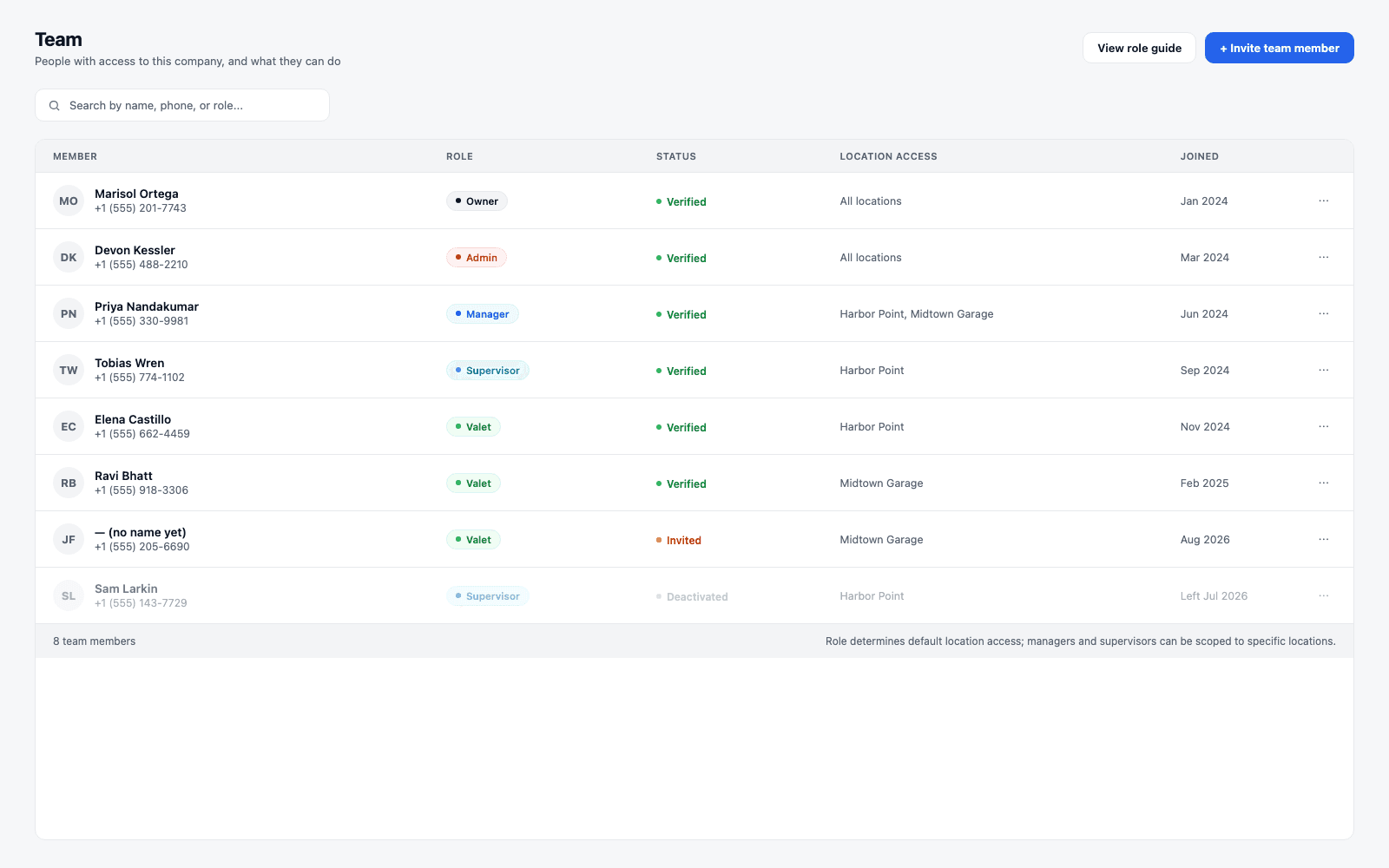
→A person who hasn't finished onboarding shows as invited, not verified - and an unverified person can't be put on a schedule. A person who has left shows as deactivated, not deleted; their history stays intact.
Daily use
What a manager actually does with this, day to day
Managing the team you're responsible for, not the whole company
The daily loop is mundane on purpose: look at who's on, adjust access as people move, and lean on the role guide when a decision isn't obvious.
Daily
Check who's scheduled where
The roster and the schedule both read from the same role and location-access data, so a manager sees their own locations' staff without needing company-wide access.
As needed
Add someone to a location
An admin can add an existing team member to a location without re-inviting them - the person already exists, only their access changes.
As needed
Look up what a role can do
The in-app role guide explains each role's permissions and restrictions in plain language, so a manager doesn't have to guess before promoting someone.
→None of this requires reasoning about the underlying enforcement model. That's the point - the daily loop stays simple even though the guarantees behind it aren't trivial.
Edge cases
A role changes, and a person leaves
Changing a role takes effect immediately, and leaving doesn't erase history
Two situations come up constantly on a real team, and both are handled deliberately rather than as afterthoughts.
Promoting or demoting someone
Role change- Takes effect on their next action - no re-invite, no re-verification
- Location access can be adjusted in the same step
- The server checks the CURRENT role on every request, so a downgrade closes doors right away
Offboarding someone
Deactivation- Marked deactivated, not deleted - their shift history, timecards, and past sessions stay intact
- A deactivated person can no longer sign in, clock in, or be scheduled
- The record of who deactivated them and when is kept, for accountability
→A role change is a live check, not a cached one - the server re-evaluates who someone is on every request, so an outdated client session doesn't keep a demoted or deactivated person able to act as if nothing changed.
What this deliberately doesn't do
Two limits worth stating plainly
Hiding a button is UX. Refusing a request is security. This page only claims the second where it's actually true.
It's tempting to describe access control entirely from the interface - what a role sees and doesn't see. That's an incomplete and occasionally misleading picture.
Not published here
The full capability matrix
There are many specific, named permissions behind these five roles - who can bypass a clock-in radius, who can edit a schedule policy, and so on. That level of detail is an internal engineering artifact, not a marketing reference, and it changes as the product does.
Worth remembering
A hidden control isn't a security boundary
The interface only shows a valet the actions a valet needs. But the real boundary - the one a security reviewer should ask about - is what the server accepts when a request arrives, independent of which screen sent it.
→The honest claim is narrower than "every door is locked everywhere" and broader than "the app just hides some buttons." Some actions are refused by the server on every path; treat this guide as the plain-language map, not the exhaustive spec.
Where Valletto changes the math
A role should be a decision you make once, not a setting you fight with weekly.
Team and roles connect to the rest of the operation more than they look like they do. The Requests Inbox routes time-off and shift-claim decisions to whoever holds the operational tier for that location. Payroll reads the same role and location-access data to know who can approve hours. And every role's location scope traces back to how you've set up locations and stands in the first place.
The takeaway: five user-visible roles, one clear split between the operational tier and the narrower settings tier, onboarding that starts with a phone number and a role picked together, and an offboarding path that closes access without erasing history. If you're setting up a team for the first time, start with who needs the settings tier - that list is almost always shorter than people expect.
